Do this if your customers do not receive the Order or Shipped notification
Facebook set a quota to every page to send messages to prevent the users to exhaust the system. The quota given is decided by the number of users who interact with your messenger (page inbox) within 24hrs.
For Order notification
Section titled “For Order notification”Why are my customers successful in orders, the items are showing in the system, but why is the system not sending the order notification to them?
- The order notification sent from the system is unable to reach your customers when your page has reached the quota limit.
- Some customers set strong privacy settings that will cause the system to fail to send them the order notification too. It’s about the Facebook messenger policy.
What I can do?
1. Ask the customer to type in “cart” to your page messenger
Section titled “1. Ask the customer to type in “cart” to your page messenger”Ask customers to Messenger/Inbox/PM your page by typing “cart”, they will get the shopping cart and subsequent notifications easily within 24H.
2. Request your customers to messenger to your page inbox before live start
Section titled “2. Request your customers to messenger to your page inbox before live start”A) If you plan to sell a hot deal product in your coming live, you can make a post 1 or 2 hours before to ask your customer to say anything to your messenger. This action will make them receive the order notification on time.
B) Toggle on your messenger button to allow viewers to direct messenger to your page during live
Step 1: Go to Stream Setup > Setting
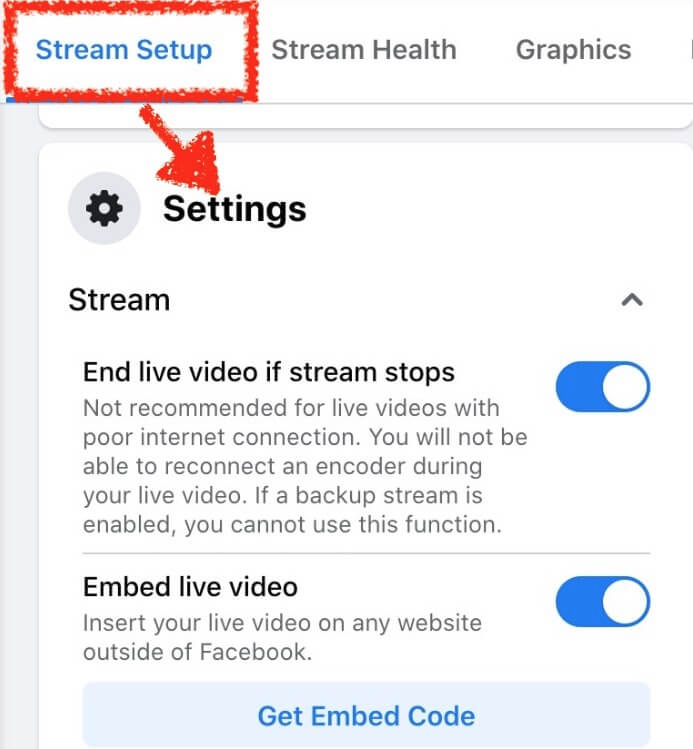
Step 1: Go to Stream Setup > Setting
Step 2: Scroll down to find “Viewing” & toggle it to On “Allow viewers to message you”
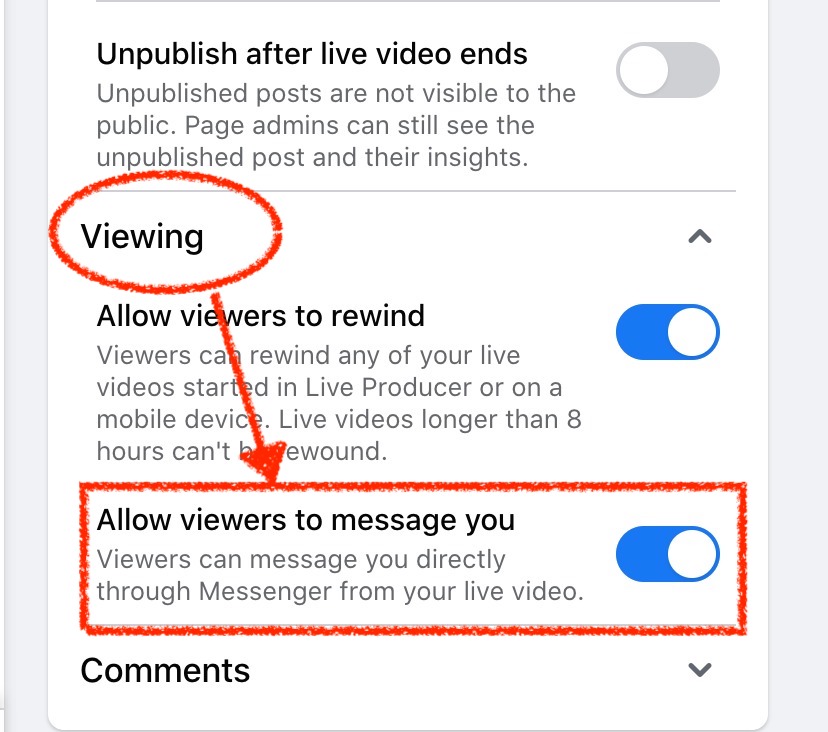
Step 2: Step 2: Scroll down to find “Viewing” & Push On “Allow viewers to message you”
If you’re using an Android phone, tab this button before your live start
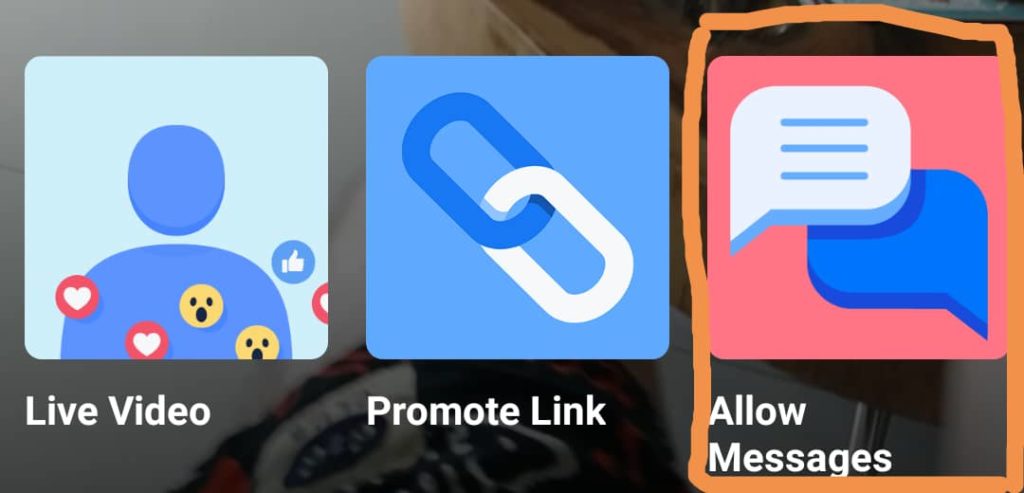
3. Set the persistent menu in your messenger & encourage your customer to self-check the order status. 👇
Section titled “3. Set the persistent menu in your messenger & encourage your customer to self-check the order status. 👇”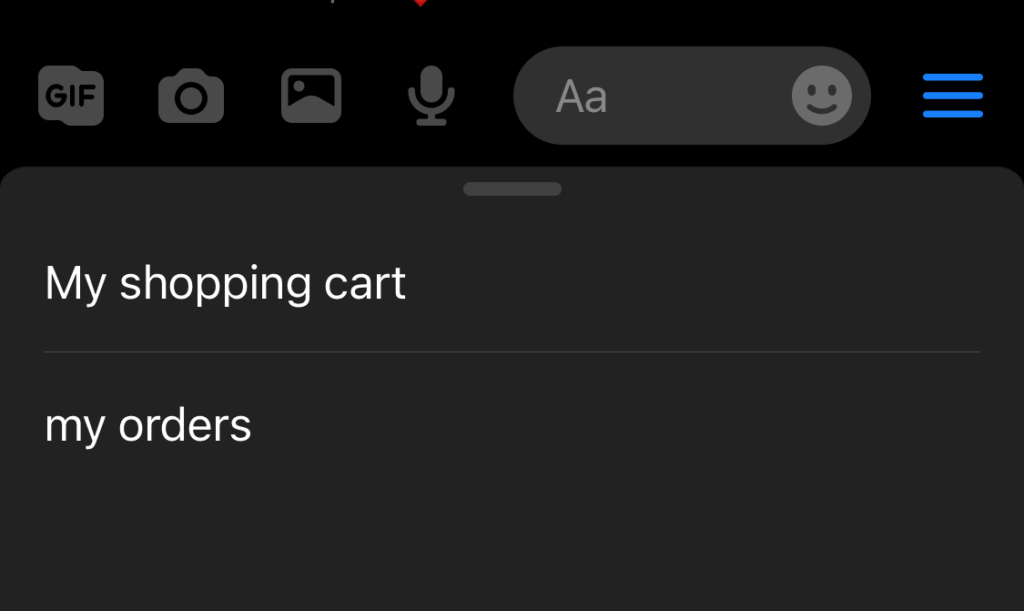
The persistent menu will show in your messenger. By tapping it, customers will get the shopping cart & the last 3 orders summary.
Shipped notification
Section titled “Shipped notification”Facebook is highly encouraging businesses to respond to people’s messages as soon as possible. So it allows businesses will have up to 24 hrs to respond to a user. This also means that you can send anything including promotional content to the users within this time frame.
We understand that post-purchase updates might not able to comply with the policy of Standard messages to send within 24 hrs. So, Facebook allows sending the post-purchase update out of 24 hrs window with the condition that the users must have consented to this action.
1. Get the customer’s consent in the shopping cart for sending the shipping update
Section titled “1. Get the customer’s consent in the shopping cart for sending the shipping update”Tick the check box as shown as below for allowing the system to send the shipping updates.
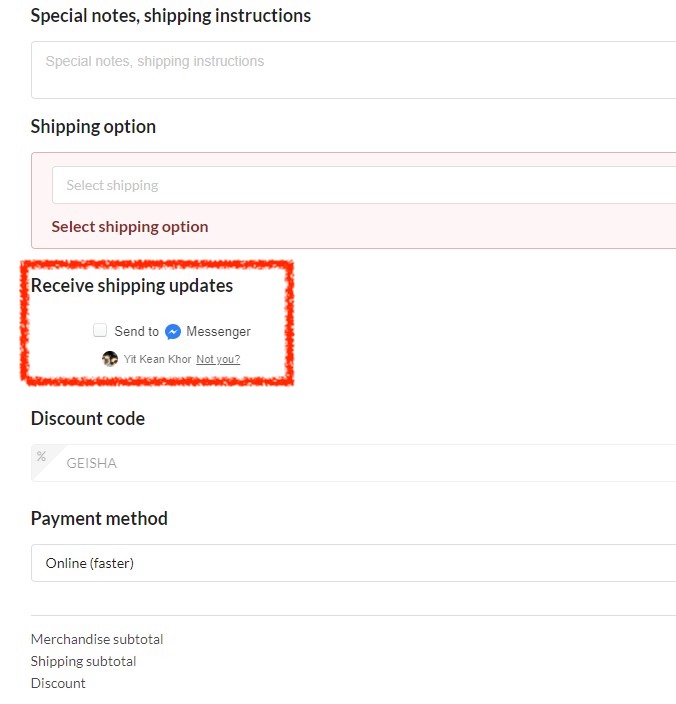
Image from Shopping cart
Iphone/Android comes with an anti-tracking feature will not successfully tick this check box.
2. Encourage customers to self-check the order status
Section titled “2. Encourage customers to self-check the order status”Add the persistent menu on your messenger & encourage customers to self-check the order status.
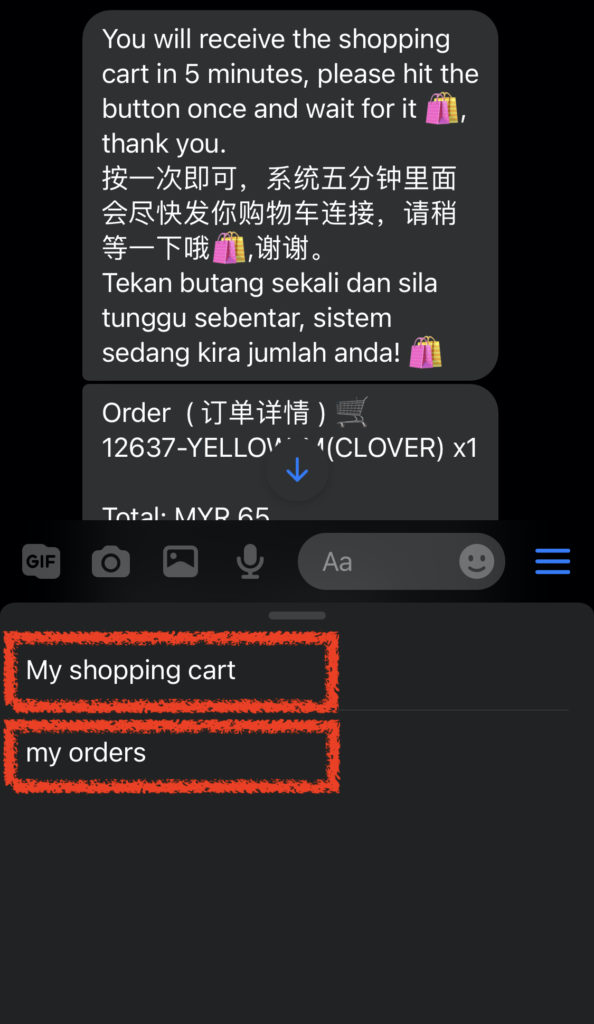
Image from messenger
See also:
3. Turn on FORCE SEND under Setting -> Parameters
Section titled “3. Turn on FORCE SEND under Setting -> Parameters”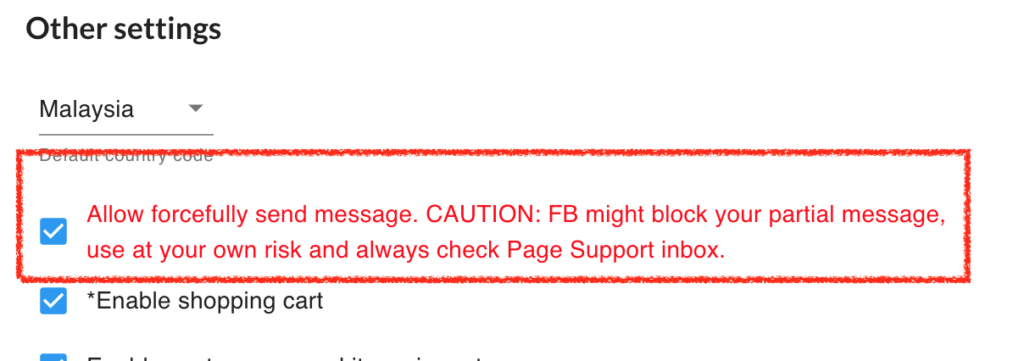
See also: