
How to Set Up FB Utility Message in Boxify
This guide shows you how to set up Facebook Utility Message templates in Boxify. These templates let you send order updates to customers even after Facebook’s 24-hour messaging window has closed.
Before you start
Section titled “Before you start”- Read How to Use Facebook Utility Message in Boxify (Avoid the 24-Hour Rule Limitation) to understand what Utility Messages are and what they can contain.
Step 1: Open the template editor
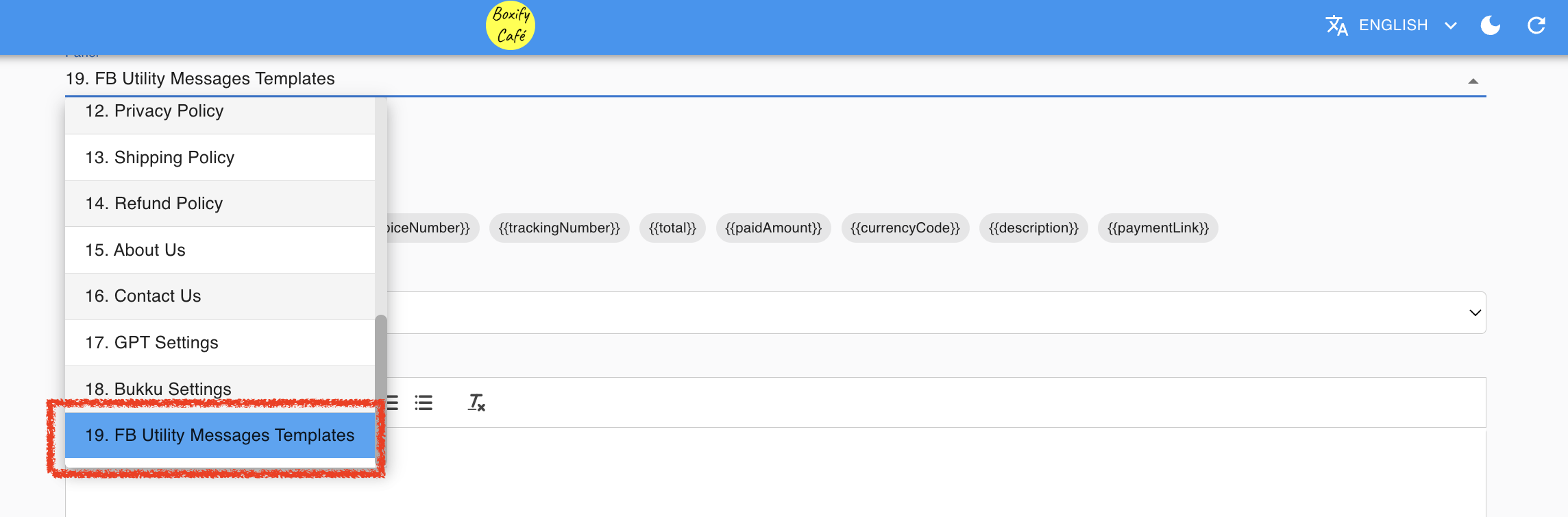
Section titled “Step 1: Open the template editor”- Go to Setting › FB Utility Messages Templates.
Step 2: Select a message type
Section titled “Step 2: Select a message type”- Click the Message Type you want to configure.
You can configure these message types:
- Cart & Payment Link
- Delivery Status
- Order Update
- Payment Confirmed
- Payment Receipt
- Payment Reminder
- Ready to Ship
- Shipped
- Shipped (Self-collect)
- Waitlist
Step 3: Fill in the header
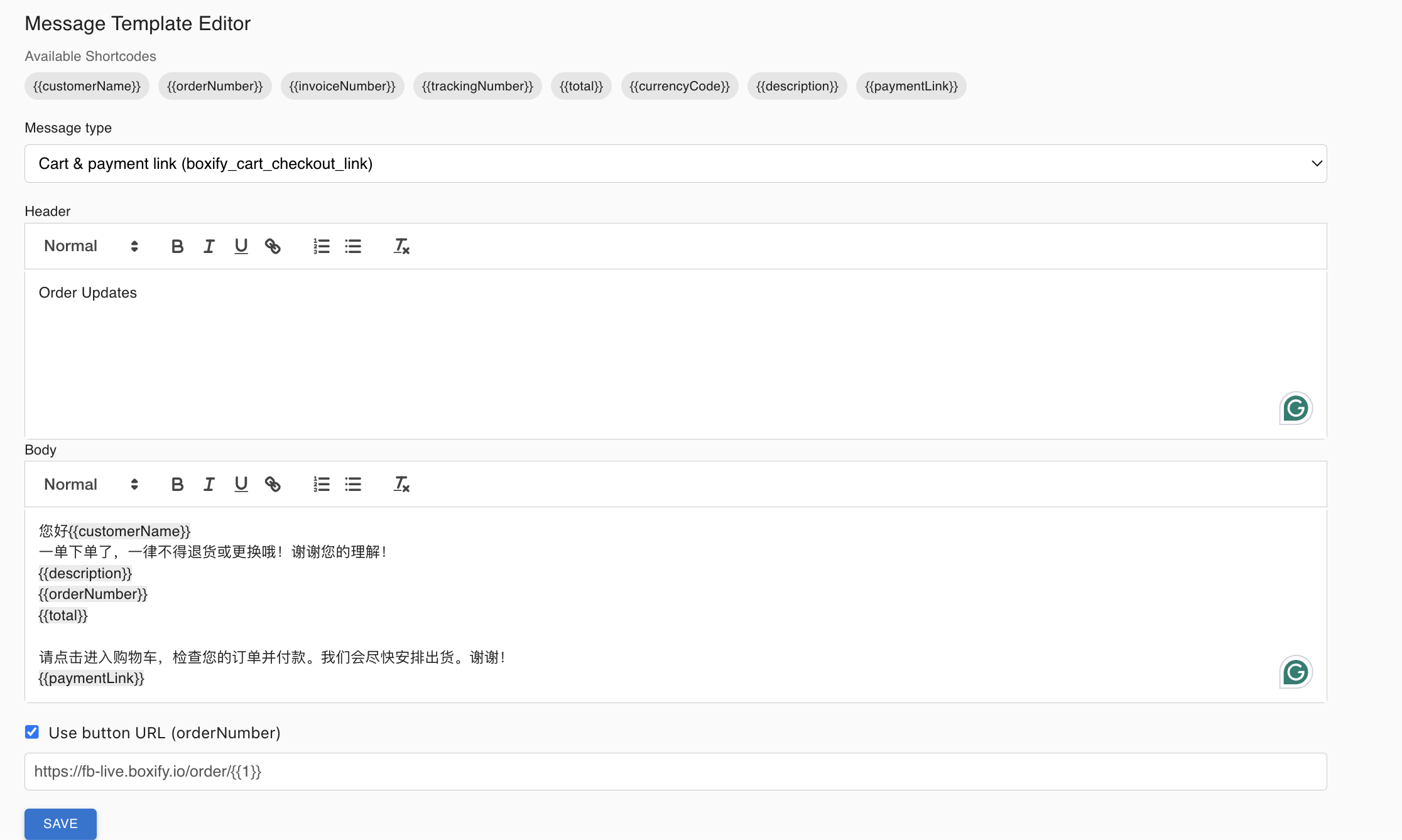
Section titled “Step 3: Fill in the header”- Type a name for this template in the Header field.
Suggested names:
- Order Payment Reminder
- Cart Payment Link
Step 4: Fill in the body message
Section titled “Step 4: Fill in the body message”- Edit the message body as needed. Boxify provides a default template you can customise.
Keep your message:
- Short and clear
- Focused on the transaction
- Free from promotional language
Safe example:
Your order
{{orderNumber}}is ready. Please proceed with payment using the link below. If you need assistance, feel free to contact us.
Step 5: Enable the button URL
Section titled “Step 5: Enable the button URL”- Tick Use Button URL (orderNumber).
This is important. Some customers cannot receive clickable links directly in a message. Enabling this option adds a button they can tap to open their cart and complete payment.
Step 6: Save and wait for Facebook approval
Section titled “Step 6: Save and wait for Facebook approval”- Click Save.
- Wait for Facebook to approve the template before it can be sent.
How Boxify chooses which message to send
Section titled “How Boxify chooses which message to send”| Timing | Message sent |
|---|---|
| Within 24 hours of customer’s last message | Standard message |
| After 24 hours | Approved Utility Message template |
See also: