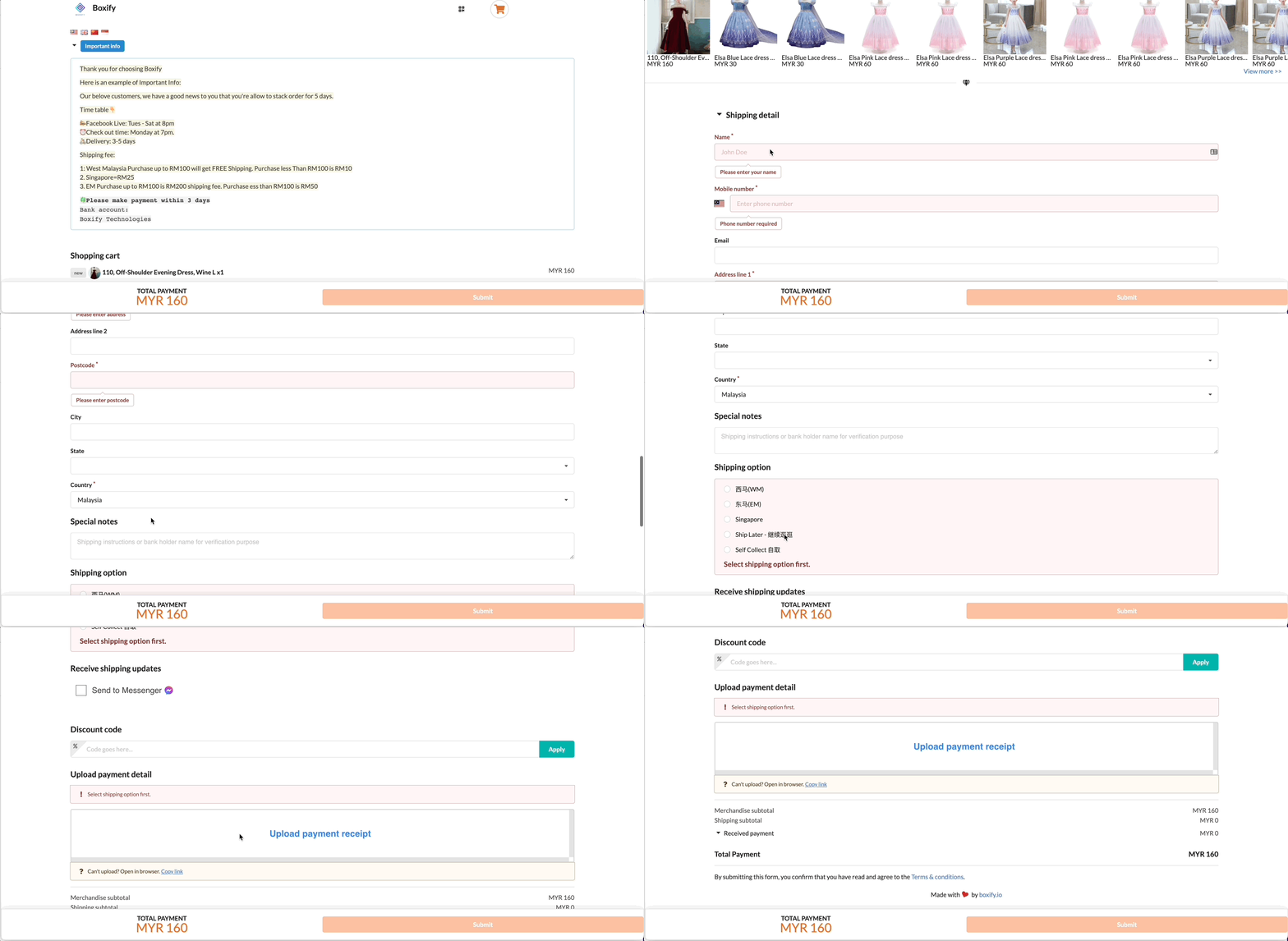
Customer checkout process
This guide explains how customers complete checkout in Boxify and how their actions affect order status.
Understanding this process helps merchants avoid payment and shipping confusion.
1️⃣ Accessing the Shopping Cart
Section titled “1️⃣ Accessing the Shopping Cart”After items are added to cart, the customer will proceed to checkout.
The checkout page allows customers to:
- Review selected items
- Update quantity
- Select shipping option
- Choose payment method
- Upload payment receipt (if offline payment is selected)
2️⃣ Mandatory Fields
Section titled “2️⃣ Mandatory Fields”Fields marked with (*) are mandatory.
Customers must complete all required fields before proceeding.
These may include:
- Name
- Contact number
- Delivery address
- Shipping option
- Payment method
If any mandatory field is incomplete, the checkout cannot proceed.
3️⃣ Shipping Option Must Be Selected First
Section titled “3️⃣ Shipping Option Must Be Selected First”The customer must select a Shipping Option before uploading any payment receipt.
This is important because:
- The shipping option determines the final payable amount
- The order status behaviour depends on the selected shipping option
- The system cannot calculate outstanding balance without shipping selected
If shipping option is not selected:
❌ The system will not allow receipt upload ❌ Payment cannot be finalised
4️⃣ Payment Method Selection
Section titled “4️⃣ Payment Method Selection”Customers can choose between:
- Online Payment (Payment Gateway)
- Offline Payment (Bank Transfer)
🔹 Online Payment
Section titled “🔹 Online Payment”If the customer selects online payment:
- Customer will be redirected to payment gateway
- Once successful, payment is auto reconciled
- Item status becomes Paid
- Order status changes based on shipping option
🔹 Offline Payment
Section titled “🔹 Offline Payment”If the customer selects offline payment:
- Customer selects shipping option
- Customer transfers payment manually
- Customer uploads receipt (photo / PDF)
- Merchant must verify and reconcile
Important:
Uploading receipt does NOT automatically confirm payment.
Merchant must verify bank statement and reconcile before marking item as Paid.
5️⃣ How Shipping Option Affects Order Status
Section titled “5️⃣ How Shipping Option Affects Order Status”The selected shipping option determines order behaviour:
🔹 Ship Later
Section titled “🔹 Ship Later”- Order status remains Paid
- Customer can continue stacking items
- Not ready for fulfilment
- Revenue not recognised
🔹 Ship Now / WM / EM / SG etc.
Section titled “🔹 Ship Now / WM / EM / SG etc.”- Order status becomes Ready to Ship
- Merchant can proceed to packing
- Revenue is recognised
6️⃣ After Checkout
Section titled “6️⃣ After Checkout”Once checkout is completed:
- Payment activity appears under Payments
- Order status updates accordingly
- Merchant can review payment and fulfilment readiness
Important Reminders for Merchants
Section titled “Important Reminders for Merchants”✔ Ensure customers select shipping before uploading receipt ✔ Verify offline payments before marking as Paid ✔ Do not ship orders still under “Waiting for online payment” ✔ Confirm order status is Ready to Ship before fulfilment
Quick Summary
Section titled “Quick Summary”- Fields marked with * are mandatory
- Shipping option must be selected before receipt upload
- Payment confirmation and order fulfilment are separate stages
- Revenue is recognised only when order is Ready to Ship or Shipped
Customer view of the shopping cart.
Section titled “Customer view of the shopping cart.”